Apps / Better Attachments Lite

Better Attachments Lite for Jira

See, filter and clean up the attachments of a project.
Get it on the Marketplace
01 · What it does

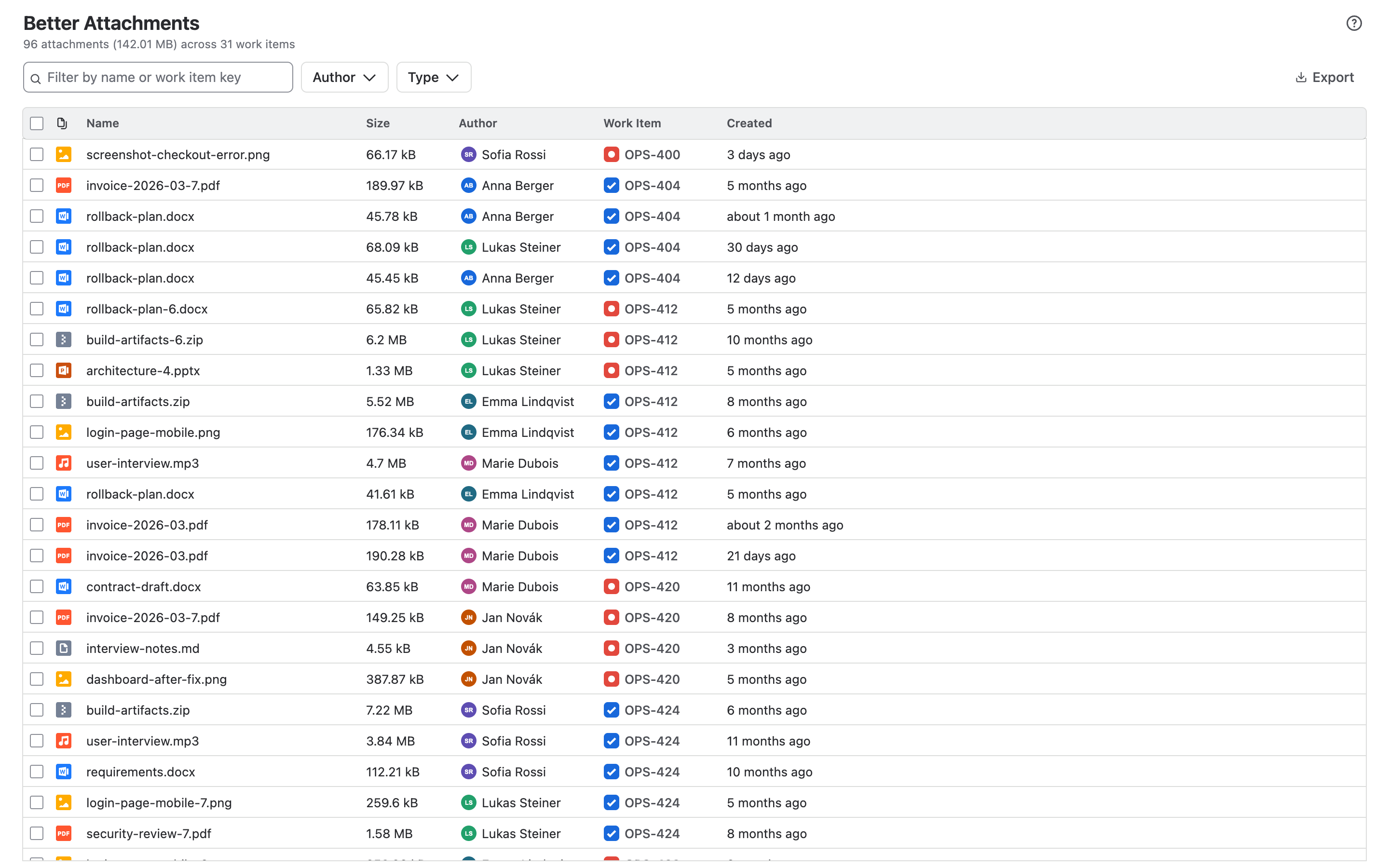
All attachments of a project in one table

Jira shows attachments one work item at a time. Better Attachments Lite lists every attachment of a project in a single table, so you can see what is there, find a file and tidy up. The attachments of a project in one table with name, size, author, work item and upload date
02 · Find

Filter and sort

  • Filters. By file name, work item key or summary, by file type and by author.
  • Sorting. By name, size, author, work item or upload date.
  • Your columns. Hide what you don’t need and resize the rest. Your layout is remembered.
03 · Bulk actions

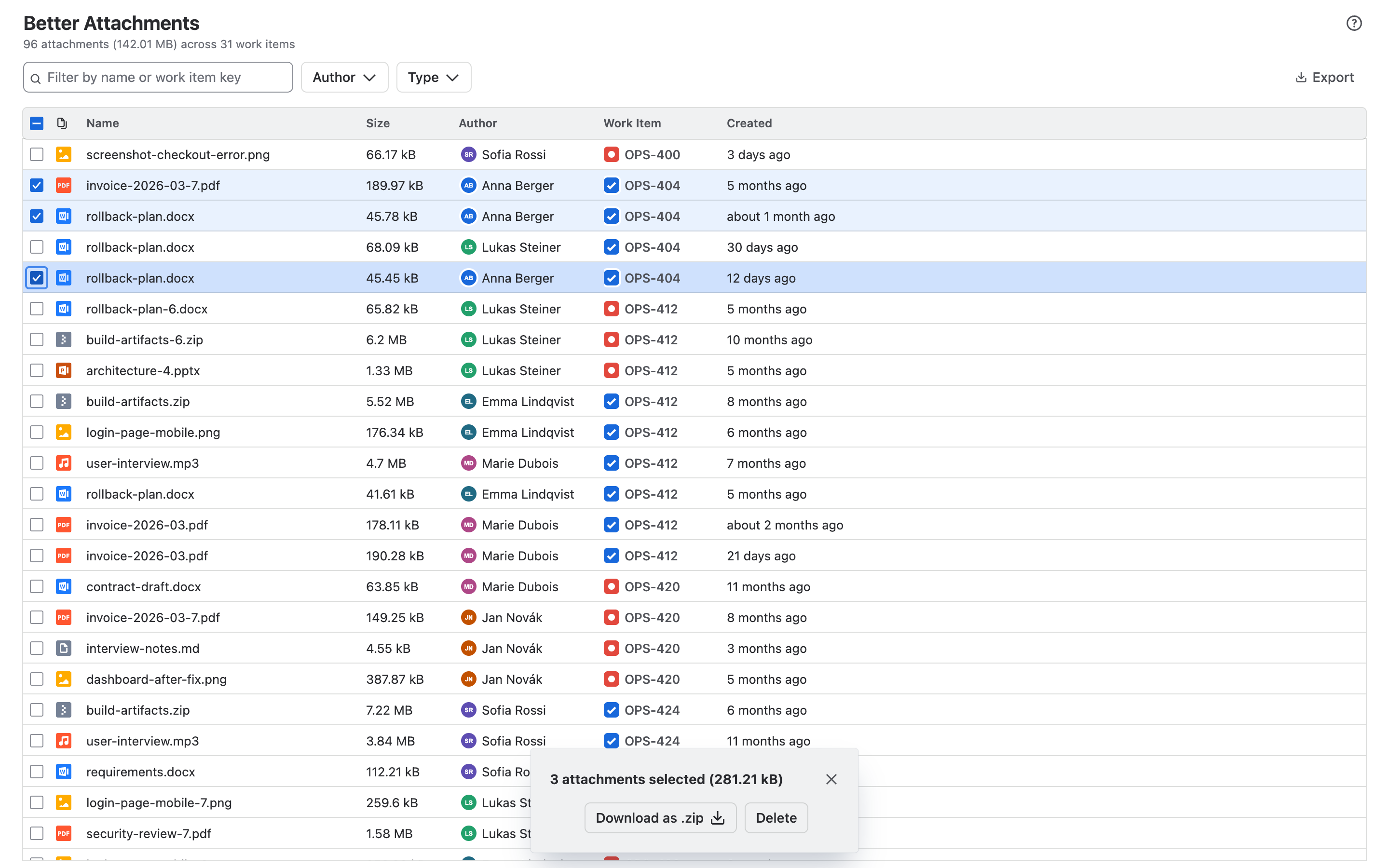
Download, delete and export in bulk

  • Download as ZIP. Select the files and get one archive. Large selections are split into several.
  • Delete. Remove what is no longer needed in one go. Deleting needs Jira’s permission to delete attachments and asks for confirmation first.
  • Export to CSV. Exactly the rows and columns you see.
Selected attachments with the bar that offers Download as zip and Delete
04 · Limits

What Lite handles

Work items in one viewup to 30,000
Files per ZIP archiveup to 5,000
Size per ZIP archiveup to 512 MB

A selection that is larger than one archive is split into several, which you download one after the other.

05 · Editions

Lite or Pro

LitePro
Attachments table with filtering and sortingYesYes
Filter by file type, author and textYesYes
Show, hide and resize columnsYesYes
Bulk download and bulk deleteYesYes
CSV exportYesYes
Attachments of several projects with JQLNoYes
Labels and flagsNoYes
Revision groupingNoYes
Panel on the work itemNoYes
Action in the work item searchNoYes
Work items per view30,00060,000
Per ZIP archive5,000 files, 512 MB10,000 files, 1 GB
See Better Attachments Pro
06 · Getting started

Installed in a minute

  1. A Jira administrator installs the app from the Atlassian Marketplace.
  2. Open a project and choose Better Attachments from the project’s apps.
  3. Filter, download or delete. Nothing needs to be configured first.
Read the user guide