Better Attachments Pro for Jira
Find, organise and clean up Jira attachments across projects.
Find, organise and clean up Jira attachments across projects.
Jira shows attachments one work item at a time. Better Attachments Pro puts the attachments of a whole project, or of any JQL search, into a single table that you can filter, sort, label and act on.
It answers the questions Jira can’t: which files does this project hold, who uploaded them, how large are they, and which of them can go.
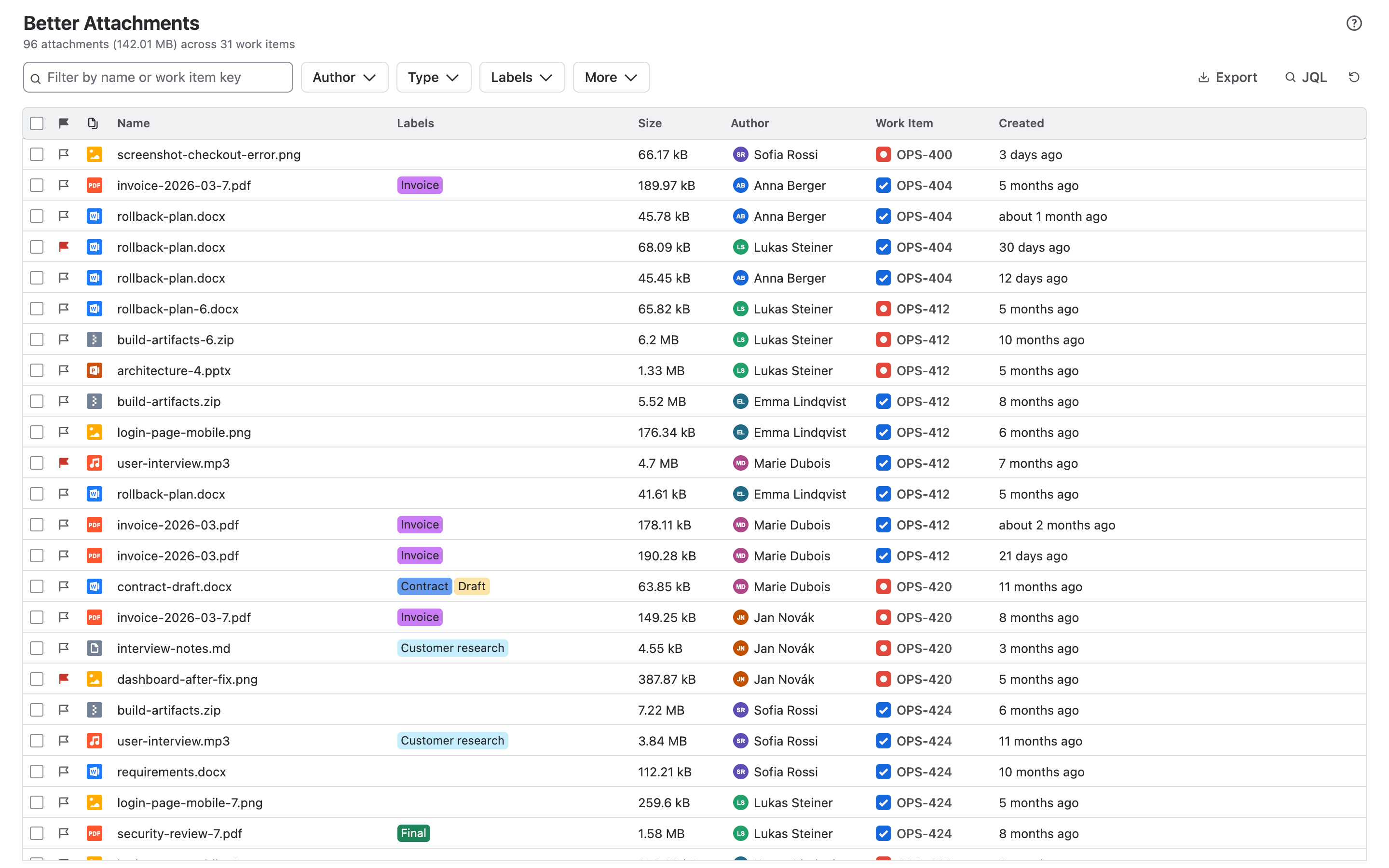
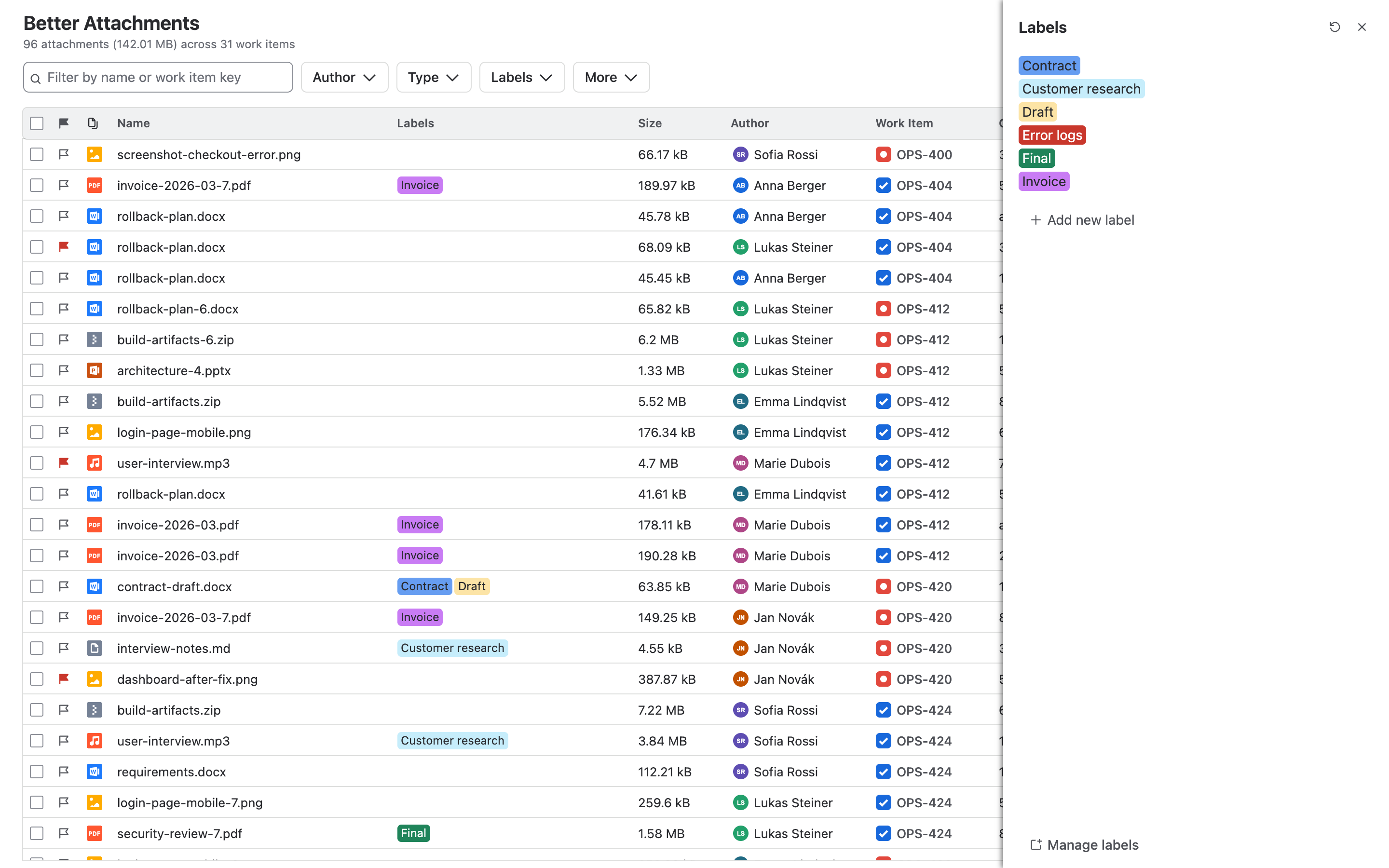
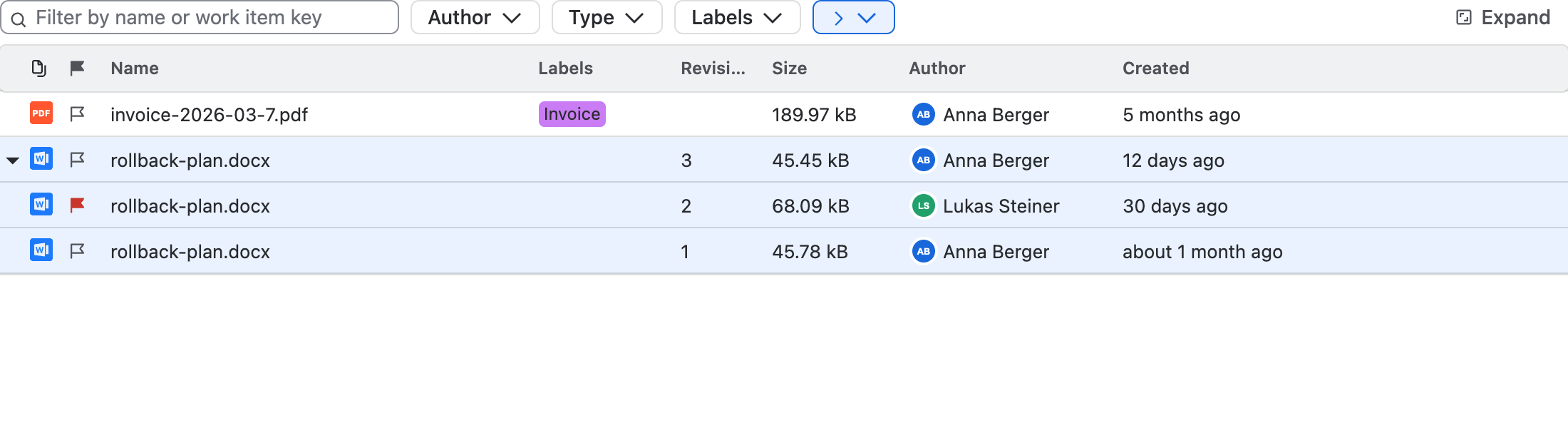
Labels sort attachments into your own categories, each with its own colour: contracts, drafts, architecture documents. Administrators manage the set of labels for the whole site.
Flags mark files that need attention. One click sets a flag, and a filter shows only the flagged files.
Revisions group files with the same name on one work item. The newest upload is the main row and the older versions fold away underneath.
| Where | What you get |
|---|---|
| Project page | All attachments of the project, or of any JQL search. |
| Work item panel | The attachments of that work item with revisions, labels and flags. It updates when files are added or removed. |
| Work item search | The attachments of the search you are looking at, in a full-screen view. |
| Jira settings | The page where administrators create, rename and colour labels. |
| Work items in one view | up to 60,000 |
|---|---|
| Files per ZIP archive | up to 10,000 |
| Size per ZIP archive | up to 1 GB |
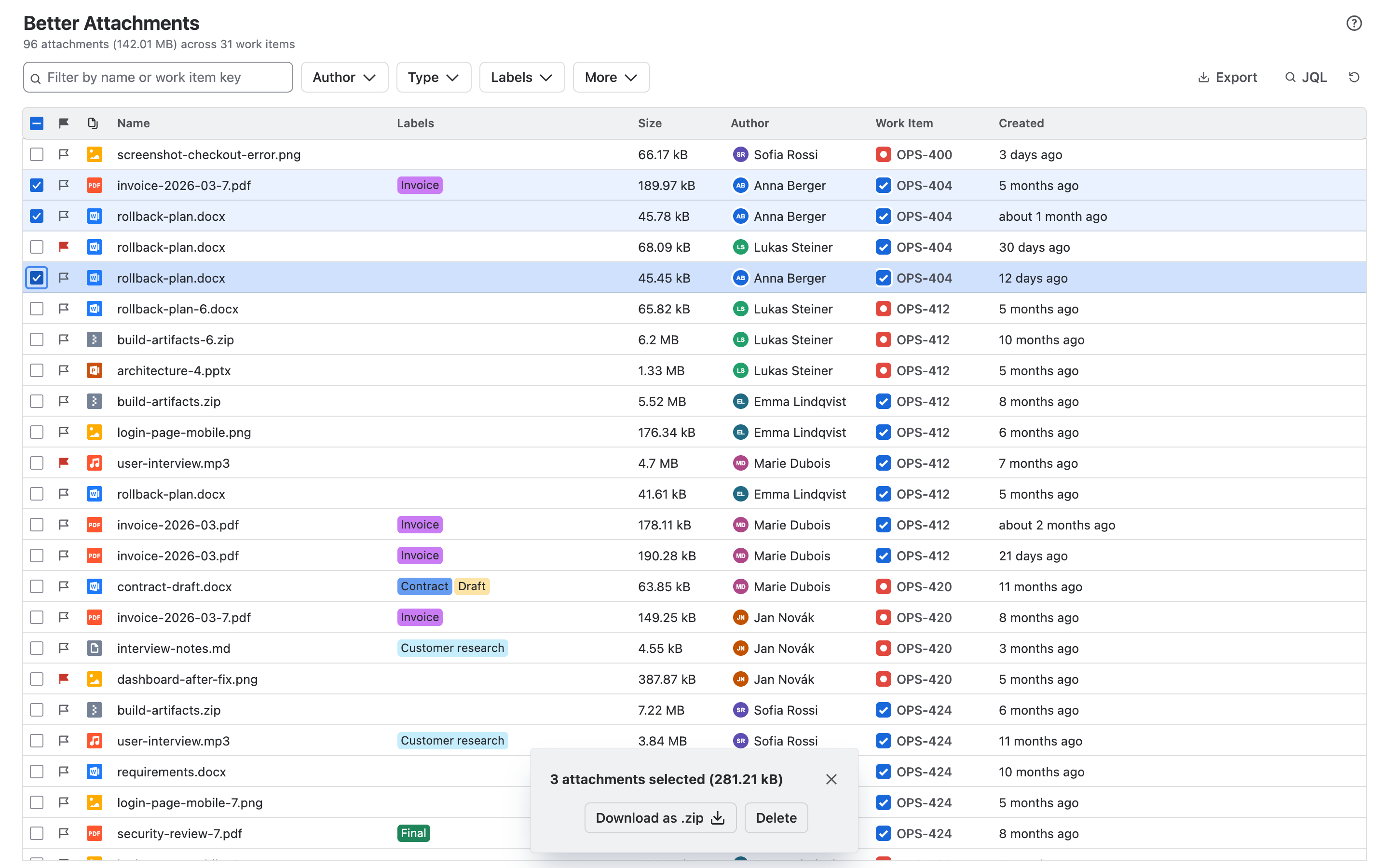
A selection that is larger than one archive is split into several, which you download one after the other.
| Lite | Pro | |
|---|---|---|
| Attachments table with filtering and sorting | Yes | Yes |
| Filter by file type, author and text | Yes | Yes |
| Show, hide and resize columns | Yes | Yes |
| Bulk download and bulk delete | Yes | Yes |
| CSV export | Yes | Yes |
| Attachments of several projects with JQL | No | Yes |
| Labels and flags | No | Yes |
| Revision grouping | No | Yes |
| Panel on the work item | No | Yes |
| Action in the work item search | No | Yes |
| Work items per view | 30,000 | 60,000 |
| Per ZIP archive | 5,000 files, 512 MB | 10,000 files, 1 GB |