
Install
A Jira administrator installs the app from the Atlassian Marketplace. There is nothing to configure afterwards. The app is available to everyone who can search for work items.
Where to find it
- In Jira, open Filters and choose Search work items, or open any saved filter.
- Run the search whose attachments you want. A project, a filter or any JQL works, for example
project = OPS AND created >= -90d. - Open the Apps menu above the search results.
- Choose Download all attachments, ultra fast.
The app always works on the search you are looking at. To download something else, change the search and open the app again.
Download everything
The dialog first looks through the search. This takes a few seconds even for more than 10,000 work items. Then it shows:
- how many attachments there are,
- their total size,
- how many work items have attachments,
- how the size is split between file types.
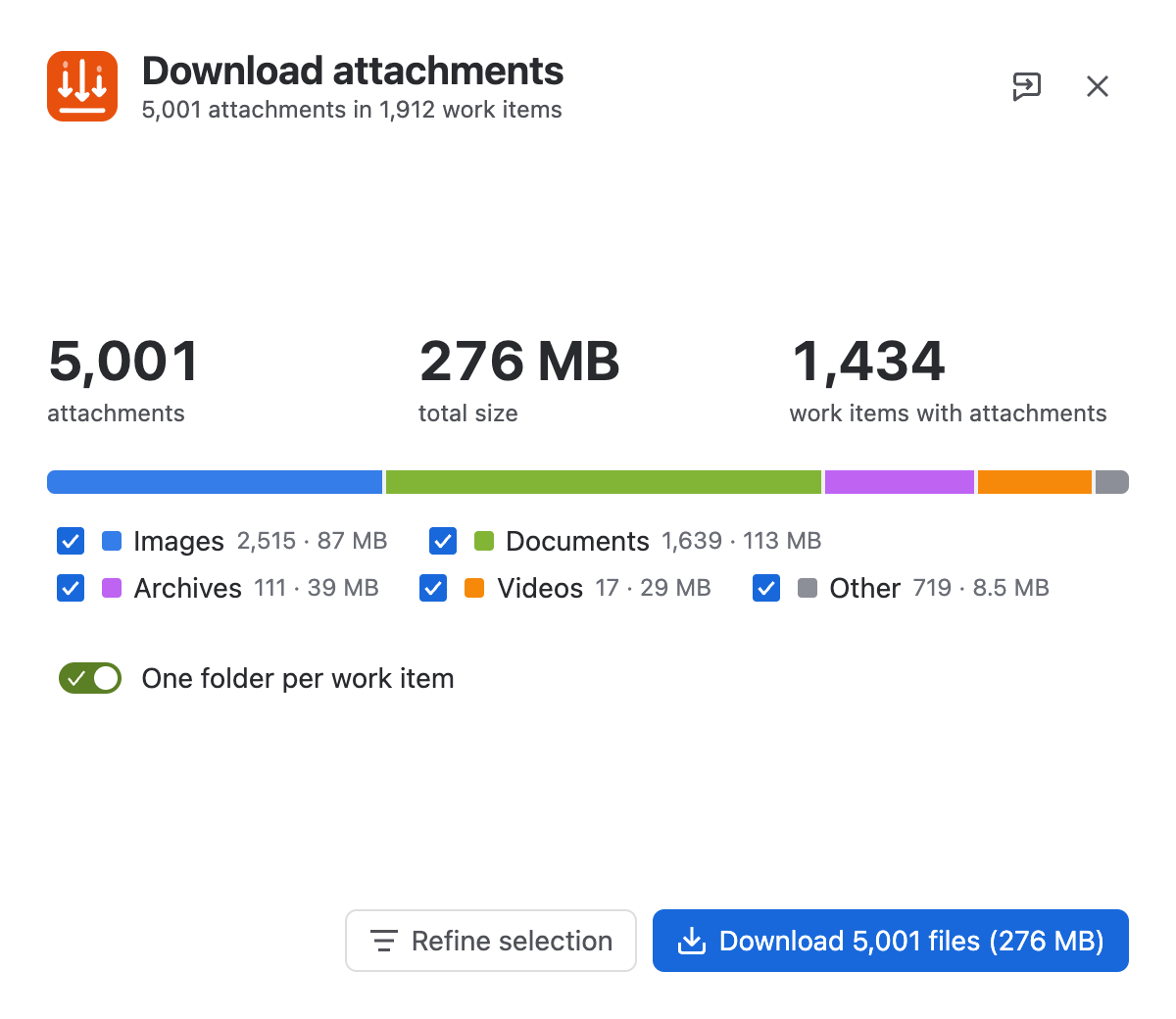
Press Download. Your browser starts saving a file called attachments-<date>.zip. Depending on your browser settings it goes to your Downloads folder or asks where to save it.
Keep the Jira tab open until the download has finished. You can switch to other tabs and keep working.
One folder per work item
With One folder per work item switched on, the ZIP contains a folder for each work item, named after its key (OPS-123/), with its attachments inside. Switched off, all files are in one folder. If two files have the same name, the second one gets a number: report.pdf, report (1).pdf.
Choose what to download
Press Refine selection to open the full list of attachments.
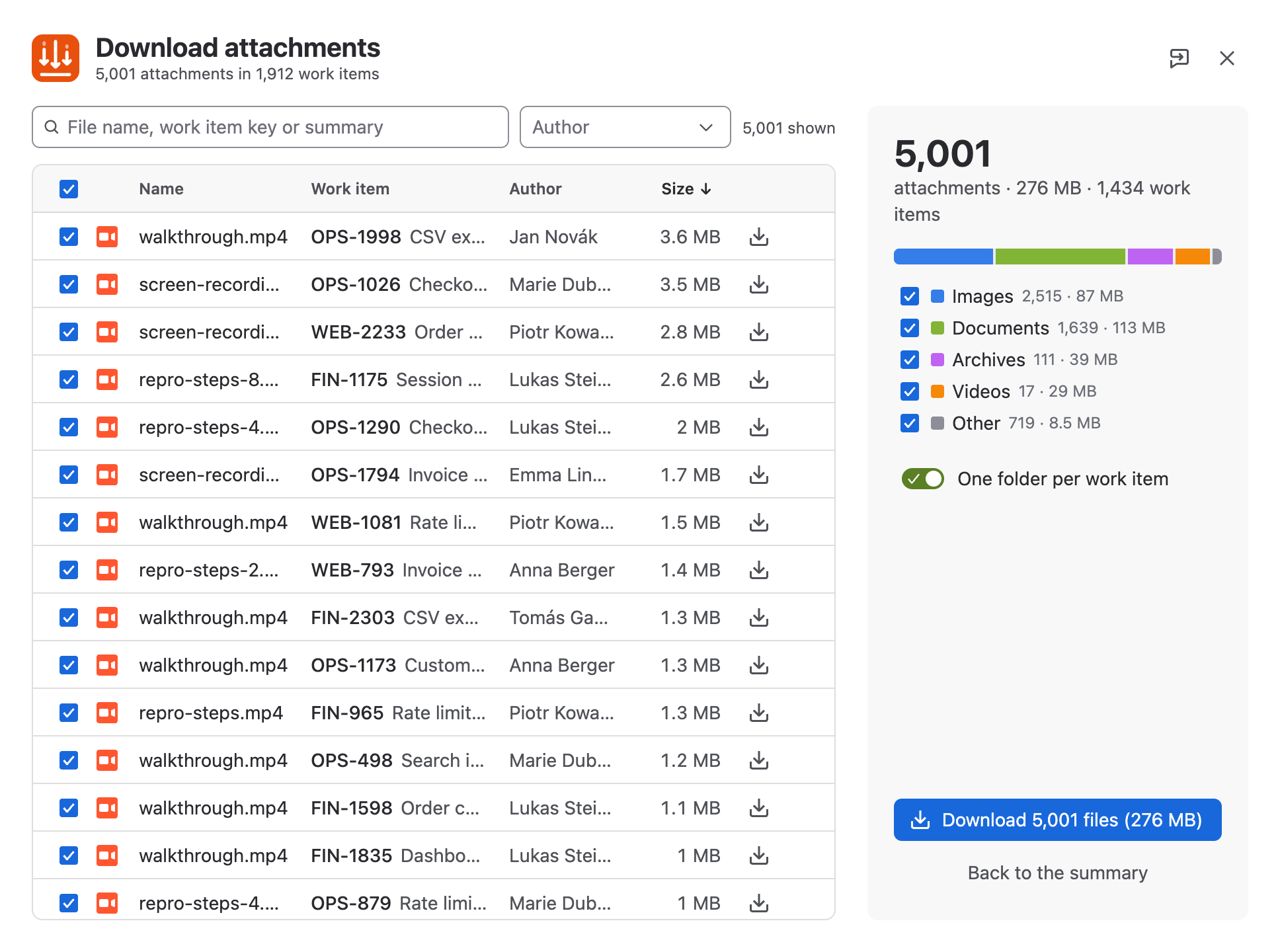
| To do this | Do this |
|---|---|
| Find files by name, work item key or summary | Type in the search field |
| Include or leave out a file type | Tick or untick Images, Documents, Archives, Videos, Other |
| Show the files of certain people | Choose them under Author |
| Sort the list | Click a column heading: Name, Work item, Author, Size. Click again to reverse, a third time to reset |
| Leave out single files | Untick them |
| Download one file only | Click the download icon at the end of its row |
The button always shows what will be downloaded: the number of files and their size. Back to the summary keeps your selection, Download starts right away.
While it downloads
The progress view shows:
- Percent, speed and time left. The time is an estimate and settles after a few seconds.
- Speed. A graph of the download speed since the start.
- Jira’s rate limit. How much of Jira’s request budget is free. The app slows down by itself when this gets low. While large files download this reads “Not reported”, which is normal.
- Parallel requests. How many files are being fetched at the same moment, up to 64.
- Large files. Files above 64 MB are fetched in parts, one file at a time, and show their own progress.
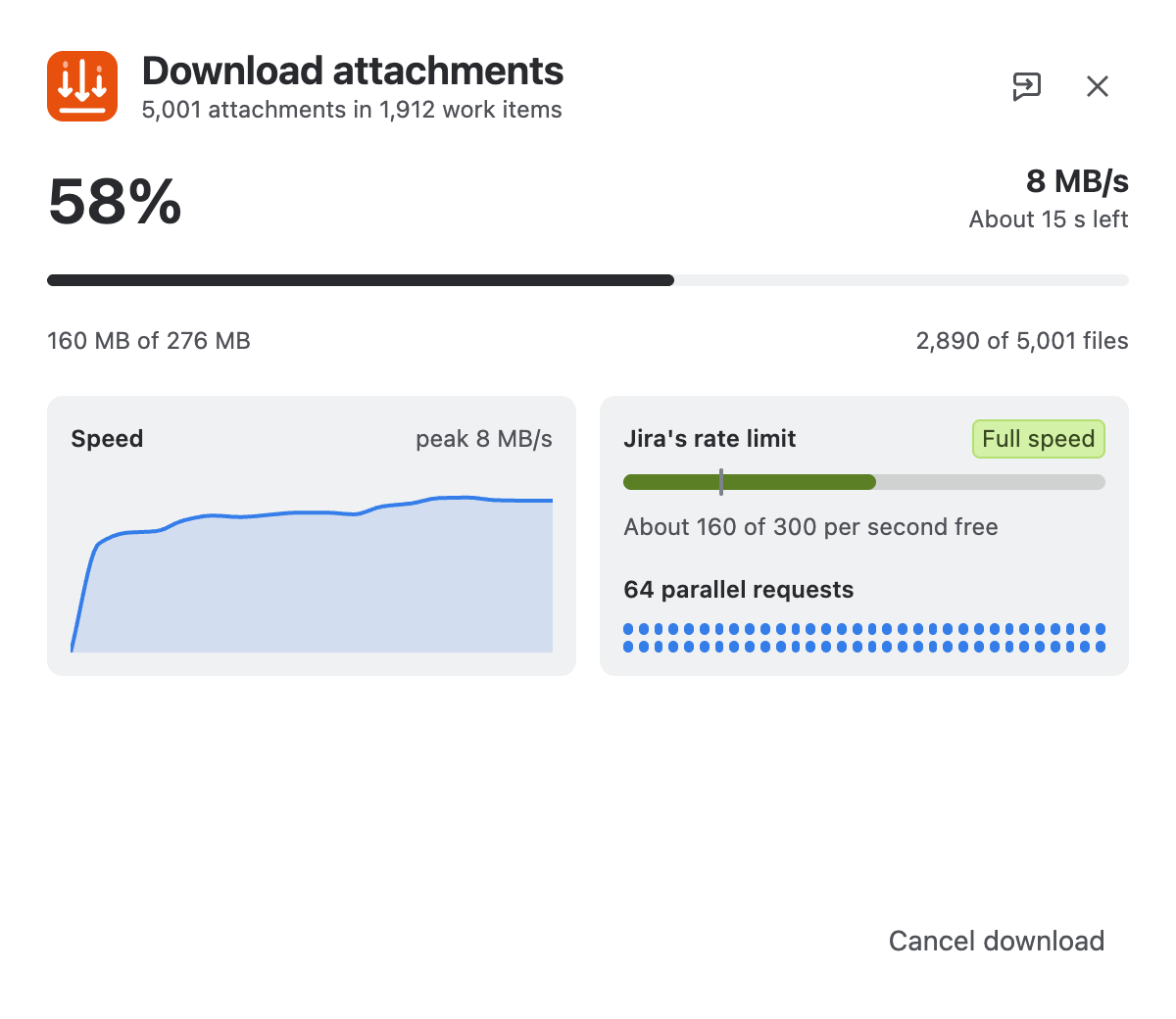
Cancel download stops everything. The unfinished ZIP is discarded by your browser.
When it is done
You see how many attachments were downloaded, the size of the ZIP, the time and the average speed.
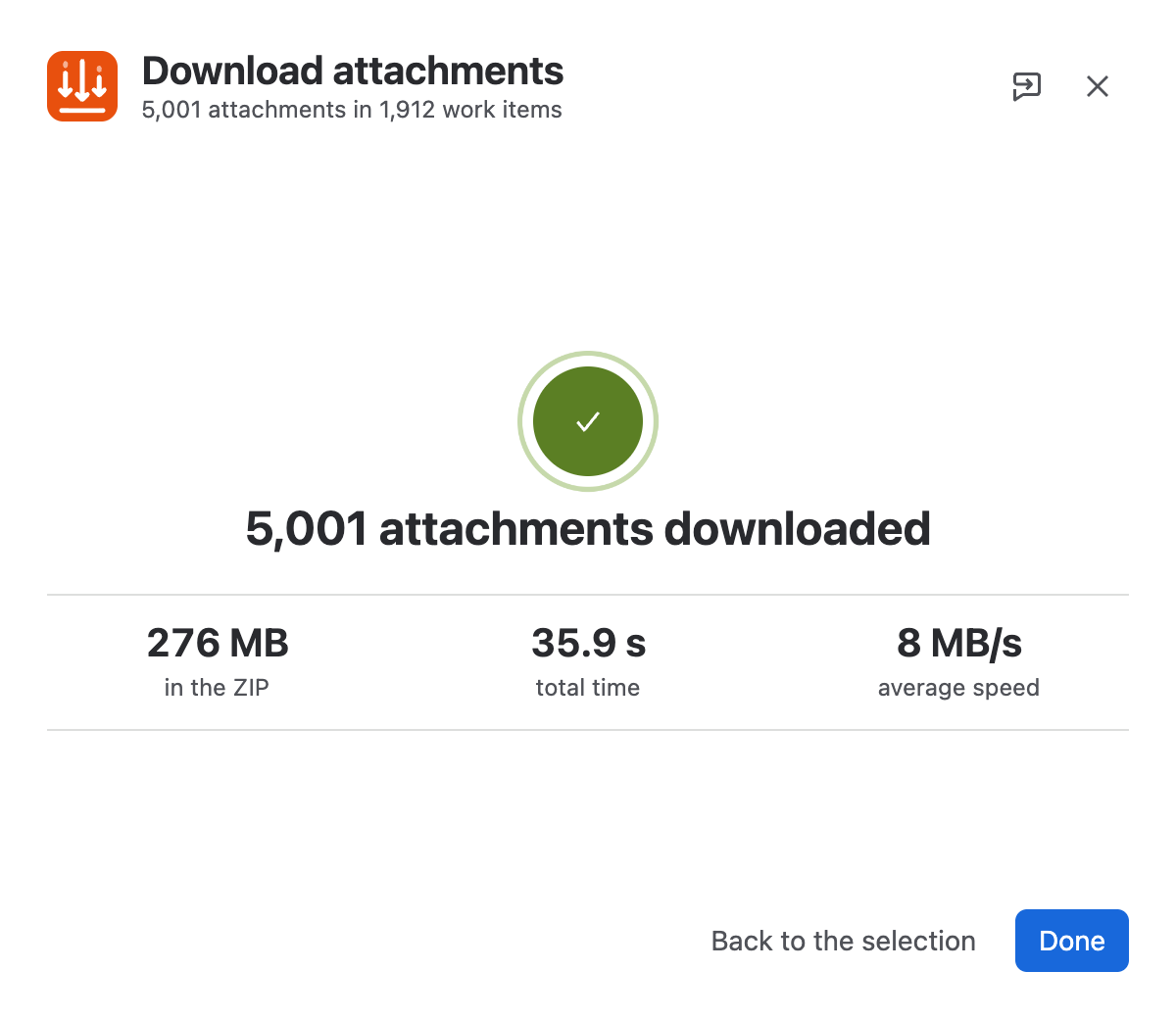
If some files could not be fetched, a yellow notice says how many. Show them lists them. Use the download icon next to a file to fetch it on its own. This opens a normal browser download from Jira.
Back to the selection takes you back to the summary, for example to download a different part of the same search.
If something does not work
| What you see | What it means | What to do |
|---|---|---|
| “Your disk is full” | There is not enough free space to save the ZIP | Free up space, then download again |
| “The browser stopped saving the file” | The download was cancelled in the browser, or the disk filled up | Check free space and your browser’s download list, then try again |
| Some files could not be downloaded | Jira did not deliver them after several attempts | Use Show them and download them one by one. If it keeps happening, contact us |
| “Paused by Jira” during a download | Jira asked the app to wait | Nothing. The download continues by itself |
| The entry is missing from the Apps menu | The app is not installed, or you are not on the search page | Ask your Jira administrator, and open the app from a work item search |
Tips
- Narrow the search before you download. It is quicker than unticking files afterwards.
- For very large downloads, check your free disk space first. Large single files temporarily need about twice their size.
- The ZIP contains exactly the file names from Jira. Characters that are not allowed in file names are replaced with
_.
Help
Use the feedback button at the top of the dialog, or go to our support portal. Tell us roughly how many work items and attachments the search had and what you saw. A screenshot helps.